Manage
Manage workspace settings, members, plans, billing, and live support roles.
Workspace management lives under Workspace settings in the dashboard.
General
Open Workspace settings -> General to:
- Rename the workspace.
- Delete the workspace if you are the owner.
Deleting a workspace removes uploaded data and trained agents. This action cannot be undone.
Members
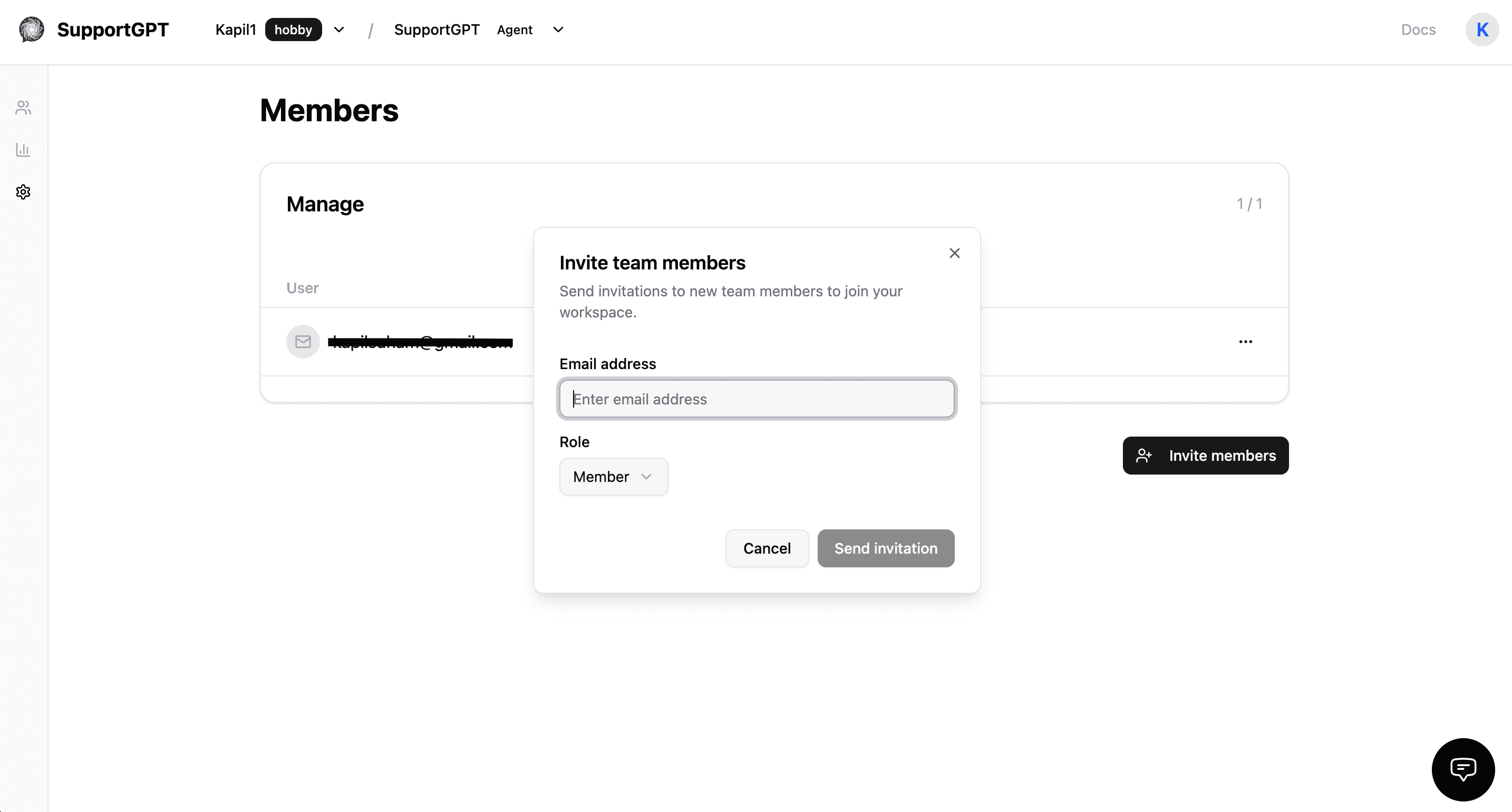
Open Workspace settings -> Members to manage teammates.
Roles currently used by the app:
- Owner: Full workspace control, including delete workspace and billing cancellation access.
- Admin: Can manage most workspace and member operations, including inviting teammates and managing billing.
- Member: Can access the workspace according to normal member permissions, but cannot perform owner-only operations.
The Members page lets permitted users:
- Invite teammates by email.
- Choose
MemberorAdminfor new invitations. - Change roles where allowed.
- Remove members or leave a workspace.
Plan limits control how many members a workspace can have. The Members page shows the current count against the active limit.
Plans
Open Workspace settings -> Plans to review upgrade options.
The current app plans are:
- Free.
- Hobby.
- Standard.
- Pro.
- Enterprise by contacting SupportGPT.
Plans control message credits, number of agents, actions, seats, website crawl access, and source storage limits. The exact active limits are shown in the dashboard because they can change as billing configuration changes.
Billing
Open Workspace settings -> Billing to review:
- Credits remaining.
- Credits used.
- Total credits for the active plan.
- Current subscription plan.
- Subscription status.
- Next billing date, when available.
Owners and admins can open the customer portal where billing is available. Owners can cancel plans from the billing area when the workspace is on a paid plan.
Live Support Team
Human handoff uses workspace members as human support agents.
- Enable handoff in Agent settings -> Human Handoff.
- Ask teammates to open the agent Inbox.
- Team members set their status online from the Live Inbox.
- Escalated conversations appear in the inbox for assignment and replies.
The handoff settings page shows active team members and their online status.