Introduction
Learn the SupportGPT dashboard and the main agent workflow.
SupportGPT is organized around workspaces and agents.
- A workspace holds teammates, plan limits, billing, usage, and shared knowledge sources.
- An agent is the AI assistant your visitors chat with.
- Knowledge sources are uploaded or synced at the workspace level and retrieved when an agent answers questions.
- The hosted widget and iframe make the agent available on your website.
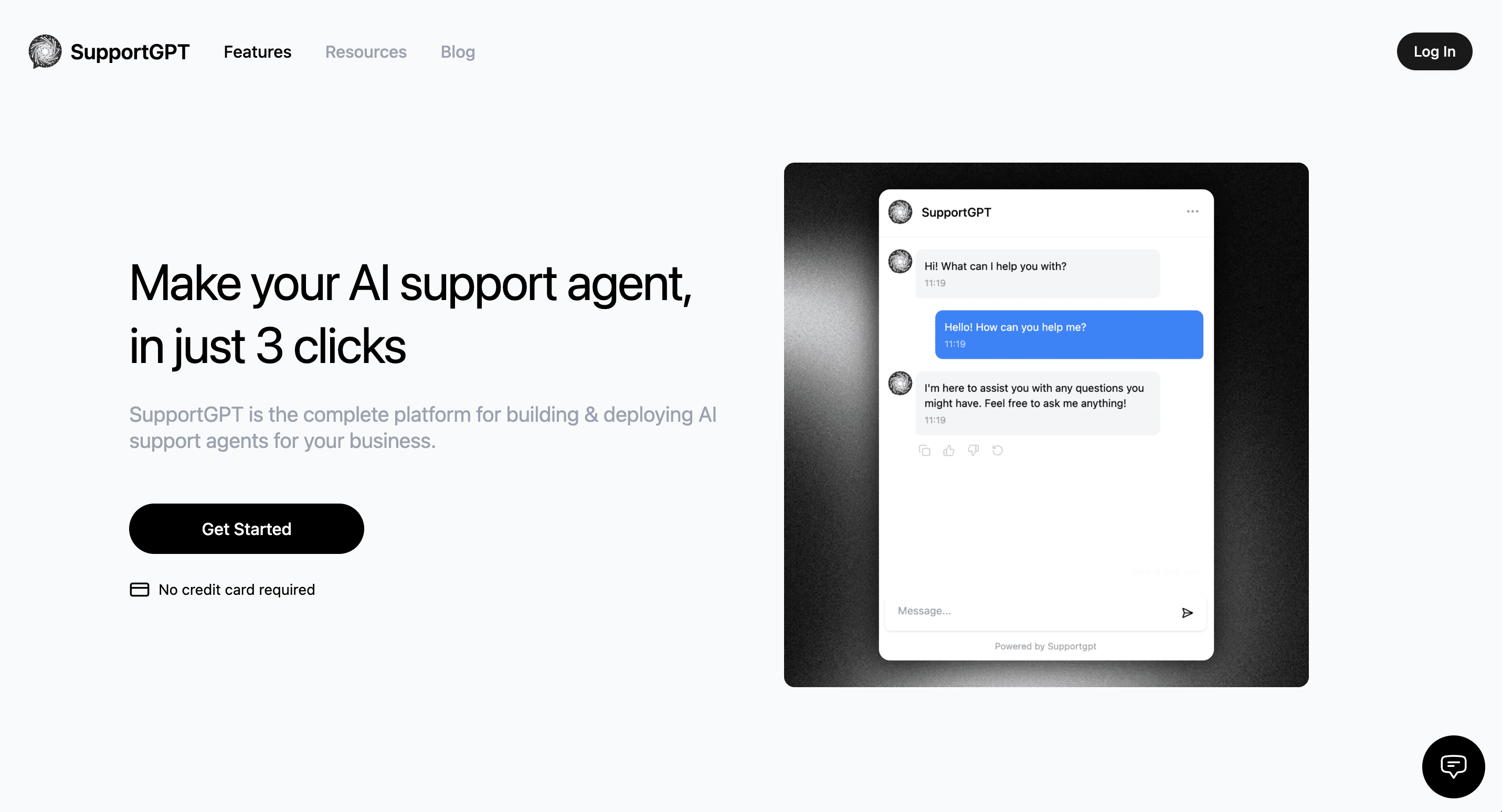
Dashboard Areas
After sign-in, the dashboard opens a workspace. The workspace sidebar includes:
- Agents: Create and open agents.
- Usage: Review workspace credit usage and agent usage over a date range.
- Workspace settings: Update workspace details, manage members, billing, and plans.
Inside an agent, the sidebar includes:
- Inbox: Handle escalated conversations with human support.
- Playground: Test the agent before deploying it.
- Activity: Review chat logs and conversations.
- Analytics: Inspect chats, topics, sentiment, country, channel, and feedback trends.
- Sources: Add files, text, websites, Q&A pairs, and Notion content.
- Actions: Create API actions and connect provider integrations.
- Deploy: Copy embed code, Next.js script code, iframe code, or a share URL.
- Settings: Configure general, AI, chat interface, security, and human handoff options.
Build Flow
- Create an agent.
- Add source content that answers real customer questions.
- Configure AI behavior and chat appearance.
- Test in Playground.
- Deploy with the chat bubble or iframe.
- Watch chats, feedback, and human handoff queues.
Supported Source Types
SupportGPT currently supports:
- Files: PDF, DOC, DOCX, and TXT.
- Text snippets.
- Q&A pairs.
- Website crawling for public HTML pages.
- Notion pages and databases through the Notion connection flow.
The app shows plan-specific storage limits in the Sources screens. Individual file uploads are capped by the upload service, and very large documents may be chunked or partially embedded to protect processing limits.
Deployment Options
- Chat bubble: Recommended for websites because it supports the widget experience, visitor identification, unread badges, human handoff, and appearance settings.
- Next.js Script Component: Recommended for Next.js apps.
- Iframe: Best when you want a full embedded chat panel inside a page.
- Share link: Opens the hosted chat page directly.
The current public integration surface is the hosted embed script and iframe. Dashboard API routes are authenticated implementation routes and should not be treated as a stable public API.